
Using Chismoso
Recordings timeline
The zoomable recordings bar under the grid and under each camera — what the colors mean, how to zoom and move, and how to find events.
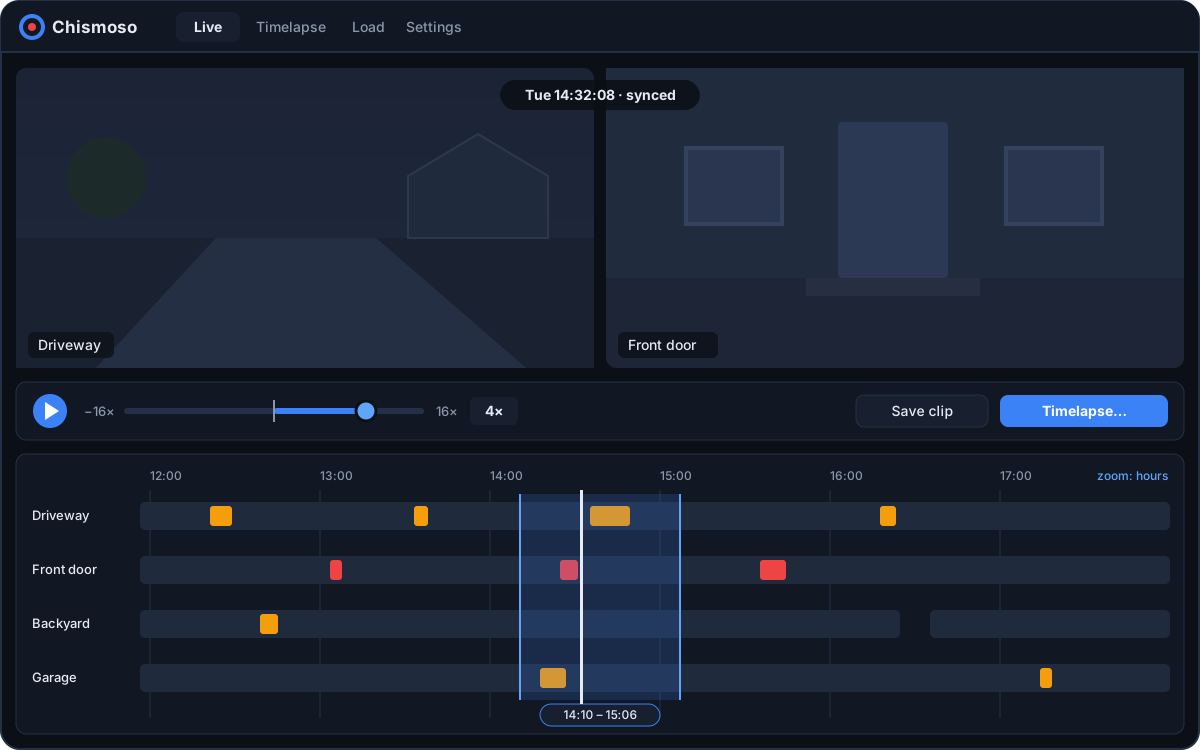
Under the camera grid, and under each camera in the camera view, there's a bar covering your recordings. You can zoom it from weeks down to about twenty seconds, see at a glance where the alerts and detections are, and click anywhere to start playing.
Note
Playing recordings needs Frigate 0.17 or newer. With older versions you can still watch live and make exports.
Reading the bar
| You see | It means |
|---|---|
| Blue | Recorded footage |
| Dark gaps | No footage for that time |
| Red marks | Alerts |
| Amber marks | Detections |
| Red line | The playhead: the moment you're watching |
In the grid, the bar covers every camera in the layout. In the camera view it covers just that camera.
New alerts and detections appear within a couple of seconds, pushed from Frigate as they happen, so you don't need to refresh.
When you zoom out past three days, the bar switches to Frigate's hourly summary. There, brighter blue means more of that hour was recorded.
Zooming and moving
| Action | What it does |
|---|---|
| Scroll, or pinch on a trackpad or touchscreen | Zoom in or out around the pointer |
| + / -, or the − / + buttons | Zoom in / out |
| 1h, 6h, 1d, 7d | Show that much time across the bar |
| Drag | Move back and forth in time |
| Date box | Jump to a day |
Playing from a moment
Click anywhere on the bar to play from that moment. If you click in a gap, playback starts at the next footage. In the grid, every camera plays together; see Playback and speed.
Press ● Live to go back to the live stream.
Finding events
- Hover a red or amber mark to see a thumbnail of the event. Click the thumbnail to play from just before it.
- ⏮ Event and Event ⏭ (or [ and ]) jump to the previous or next alert or detection.
Selecting a range
To work with a stretch of time, press ✂ Clip and drag across the bar, or hold Shift and drag. A small panel appears over the selection:
| Button | What it does |
|---|---|
| ▶ Play | Plays from the start of the selection |
| Save clip | Saves the range as a real-time video, one file per camera in view |
| Timelapse… | Opens the Timelapse tab with these cameras and this range filled in |
| ✕ | Clears the selection (or press Esc) |
Saved clips render on Frigate and download to your exports folder; progress shows on the Timelapse tab. See Clips and timelapses.
Why it stays fast
The bar asks Frigate for one day of recordings at a time and caches it. Frigate stores recordings as roughly 8,600 ten-second segments a day; Chismoso merges them into a handful of spans before drawing, and only repaints when something on the bar moved.