
Using Chismoso
Camera view
One camera full size, with a stream picker, detect/record/snapshot switches, sound and full screen.
Click any tile in the grid to open that camera on its own. The bar above the picture holds everything for that camera.
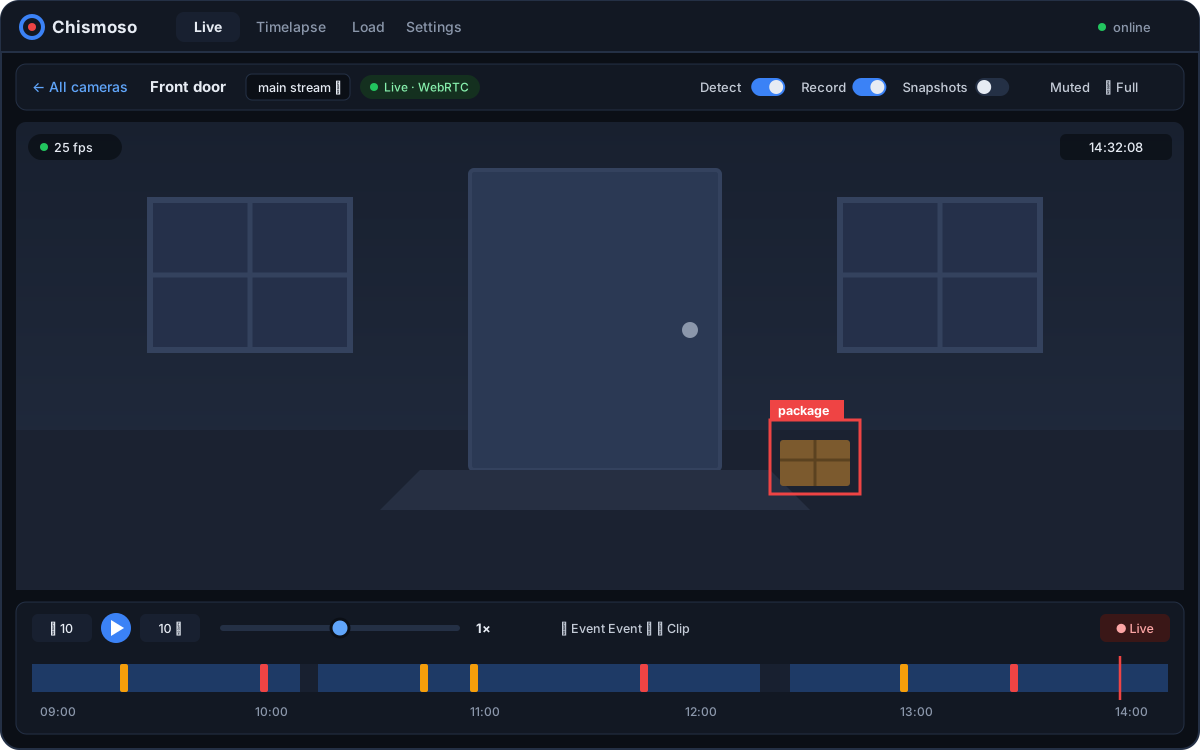
The controls
| Control | What it does |
|---|---|
| ← All cameras | Back to the grid (or press Esc) |
| Stream picker | Choose between the camera's live streams, if it has more than one |
| Badge | How you're watching: Live · WebRTC, Live · MSE, Snapshots · 1 fps, or a recording |
| Detect / Record / Snapshots | Turn those Frigate features on or off for this camera |
| Muted | Turn the camera's sound on or off |
| Full screen | Fill the screen with the picture |
The timeline under the picture covers just this camera. Click it to play this camera's recordings; see Recordings timeline.
Choosing a stream
If the camera lists several streams under live.streams in Frigate's config, a picker appears next to the name. The grid uses the second stream (usually the substream) to save bandwidth; here you can switch to the main stream for full detail, or stay on the substream over a slow connection.
Camera switches
The Detect, Record and Snapshots switches change what Frigate does for this camera, straight away.
- They need an admin account. For viewers they're shown but disabled.
- They last until Frigate restarts. To make a change permanent, set it in
config.yml(Settings).
The same switches for every camera are on the Settings tab.
Sound
Live video starts muted. Press Muted to hear the camera, if it has audio. It only makes a difference on cameras whose stream carries sound.
Full screen
Full screen fills the screen with the camera. Press Esc to leave. To make the whole app window full screen instead, use F11 or Full screen in the server menu.